
VPN:OG supports a number of features "out of the box", information below is up to date as of the latest build, 26th October 2026.
System Specification##
We recommend the following minimums:
- 8GB storage
- 1+ CPU core
- 1GB RAM
- 1 Network Card
During development these specifications easily handle a 2.5Gbps connection to the internet and, even under load, use far less than these minimum specifications, so they may be adjusted down in due course. We intend to test this on a Raspberry Pi over coming weeks.
Installation
Installation is from a github repository into a fresh install of Debian 13. Support for other Linux flavours will be introduced in due course.
Core dependencies are added during installation, users must have root access to the operating system for installation.
During installation, VPN:OG will specify sensible defaults for each of the following, but can be configured by the user:
- LAN Interface
- Gateway IP address (this is the IP the client device will use as its gateway and the web interface address). Typically, on first boot, Debian will receive a local IP address via DHCP, VPN:OG will ask users if they want to make this a permanent, static IP or enter another. This device should have a static IP address
- IPV4 prefix length (subnet mask)
- Current gateway (i.e. ISP router IP so the system has internet access to begin with)
- Management HTTPS port
- Gateway hostname
- DNS Server IP
- Web interface password
Once installed, the system will reboot.
First Run
Having installed VPN:OG, users will access the web interface using the same IP address they setup during installation.
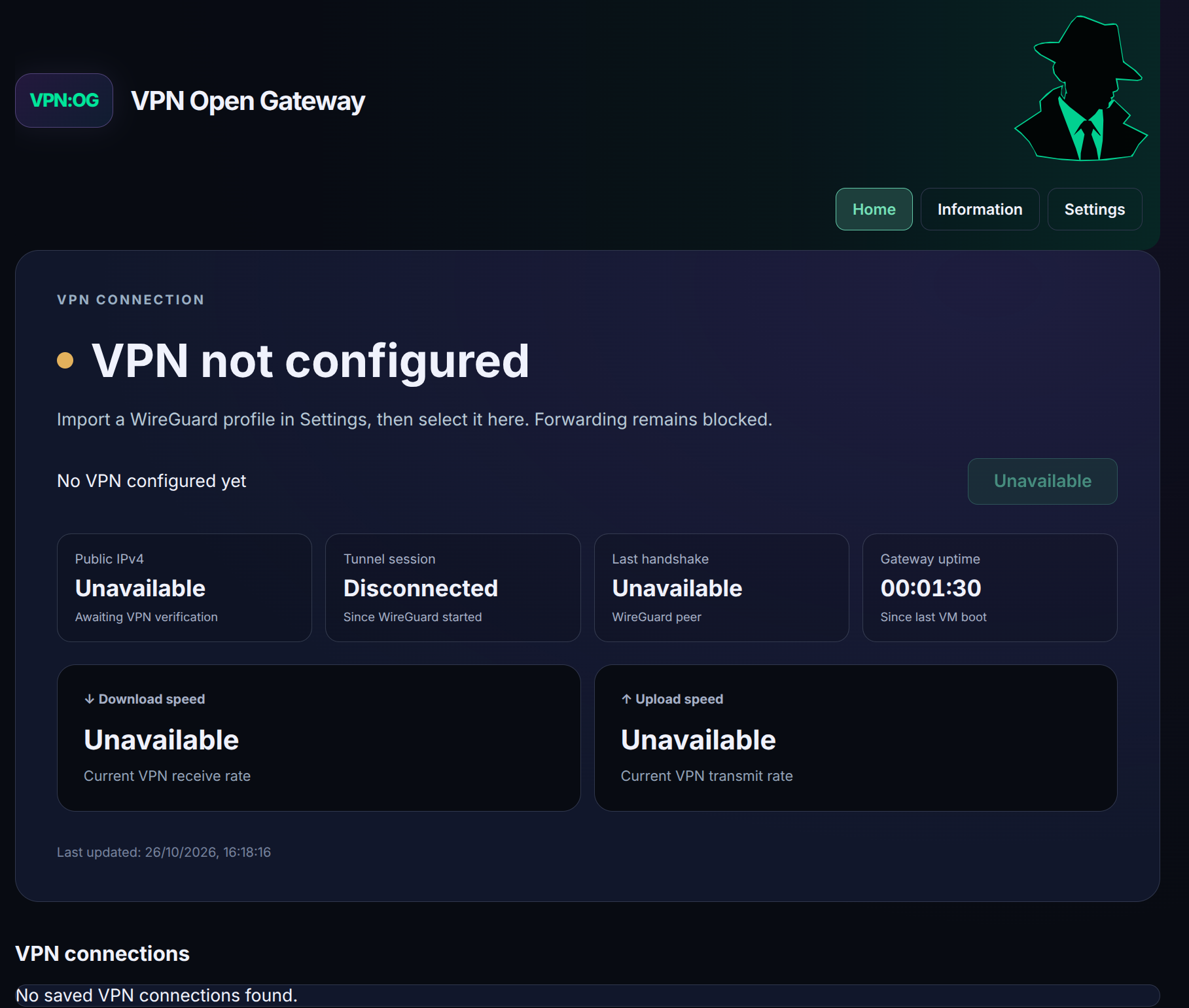
The above image shows the landing page on first run.
The VPN is not configured, we have yet to add a VPN server, so to begin with, there is nothing to connect to.
Note: It is recommended that users have a file ready to install from the VPN provider
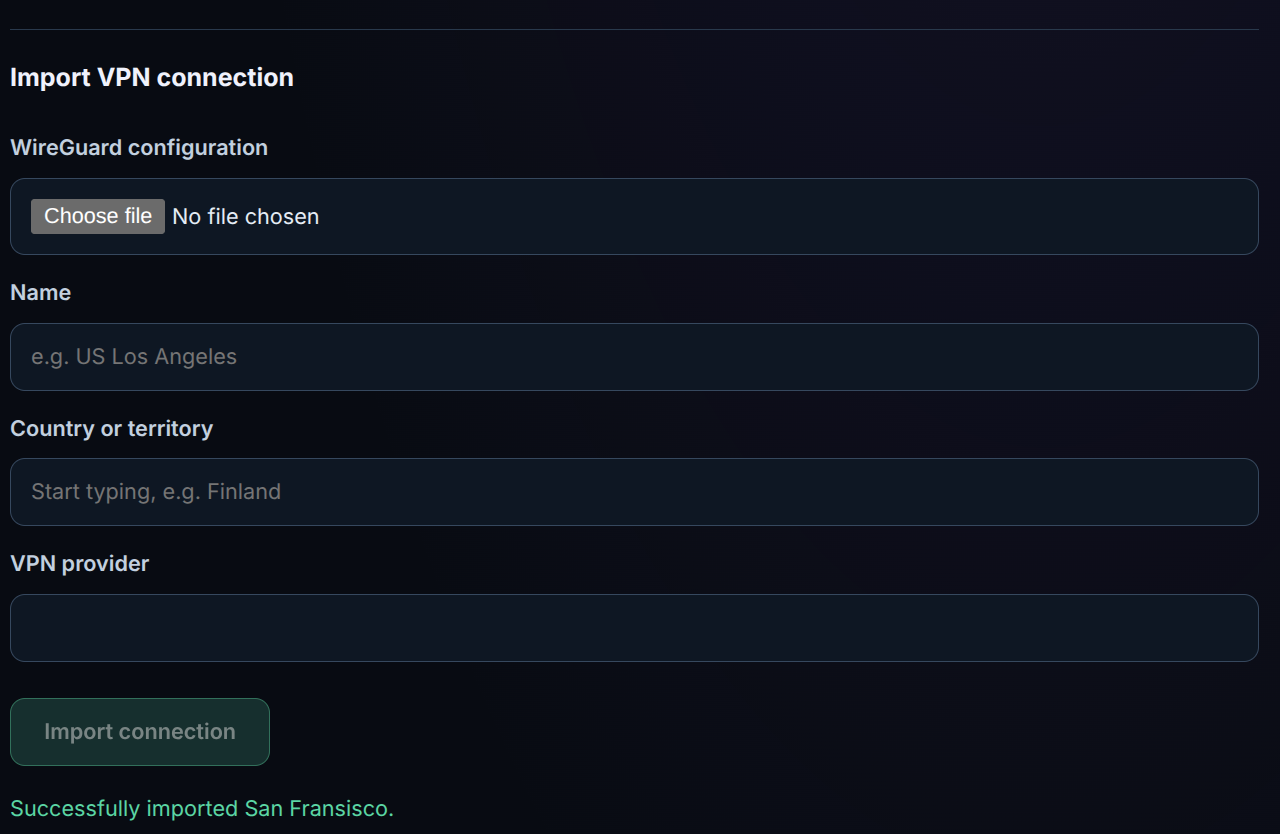
We will click Settings at the top right of the screen and use the Import VPN Connection section to install our first server.
Typically, a Wireguard configuration file will be a small text file with the extension .conf.
We will select the relevant file, give it a name - I would typically use the name of the city and and other defining characteristics if relevant, for example the server speed and/or purpose.
We begin typing the name of the Country and manually enter the name of the VPN Provider, then click Import connection.
All being well, we will now see "Successfully imported "server name" at the bottom.
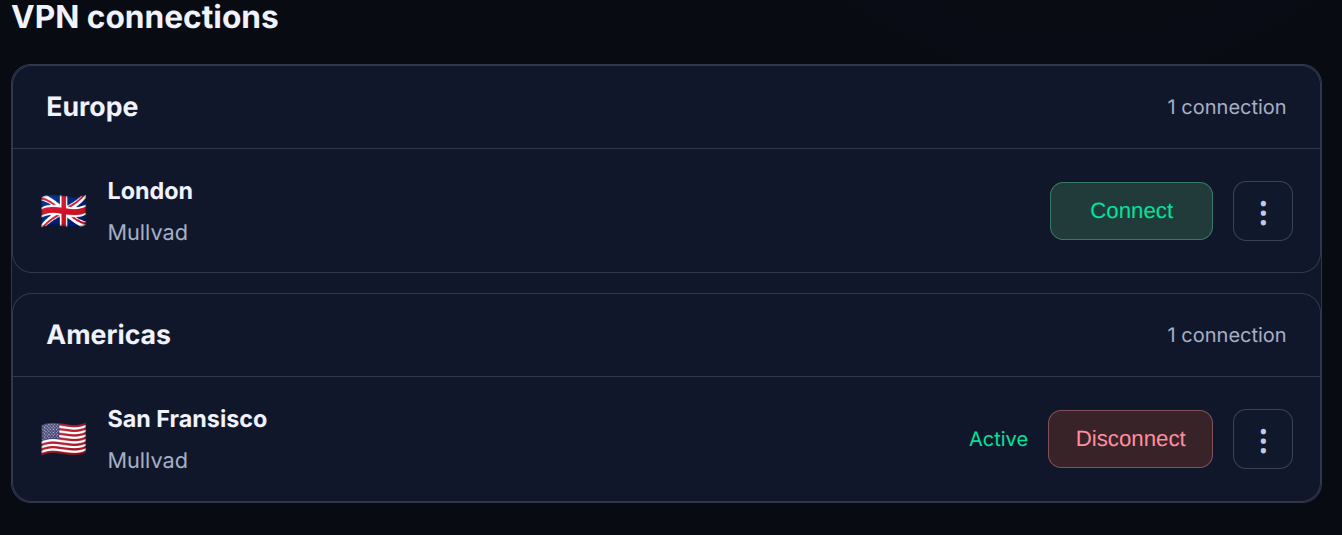
Returning to the Home screen, we will now see our new connection under VPN Connections
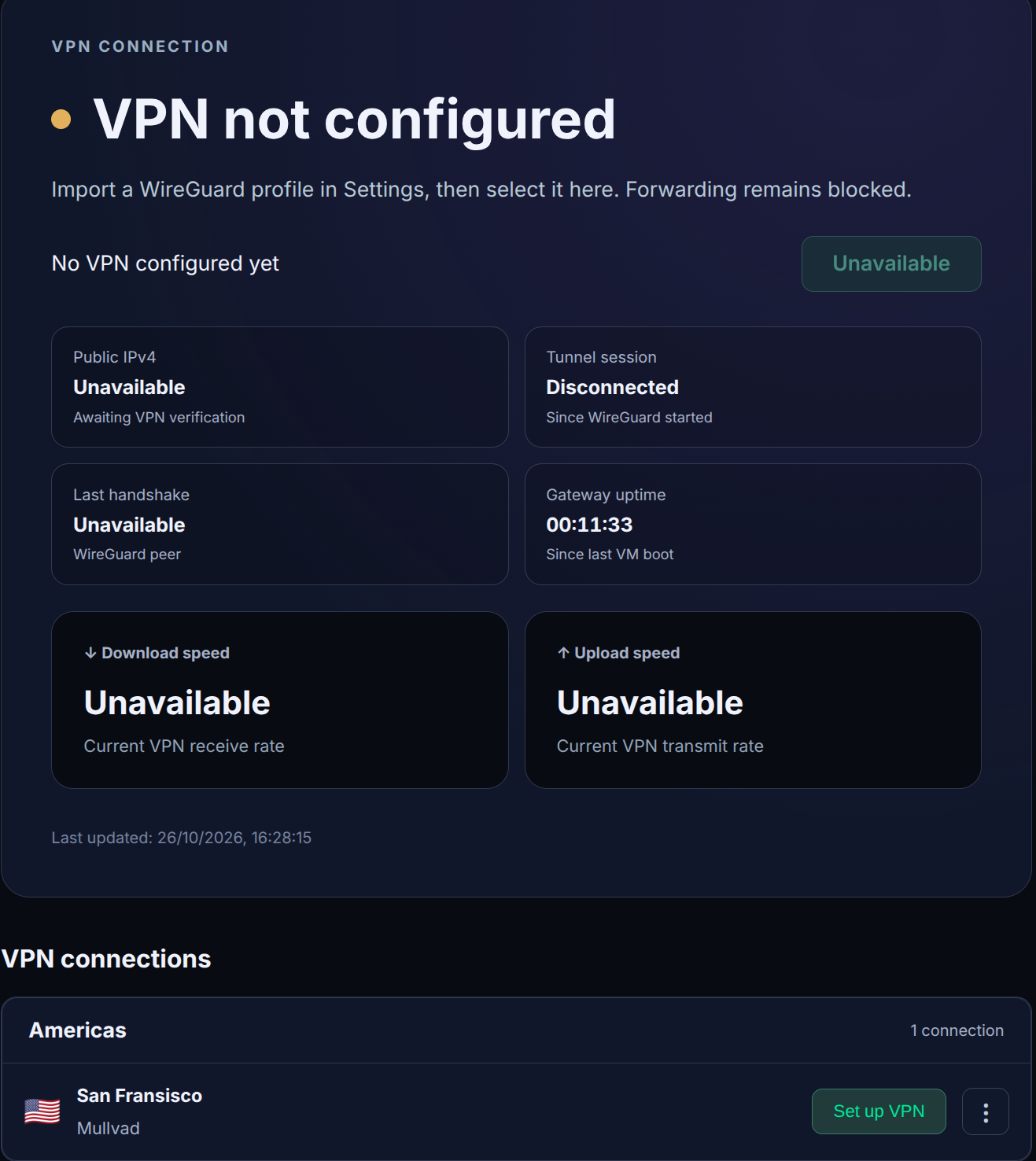
We simply click the Set up VPN button then Connect. The system will then connect to the VPN provider and begin updating its dashboard, showing your VPN supplied public IP address, information on the server and connection including throughput - as measured, continiously, rather than a single snapshot.
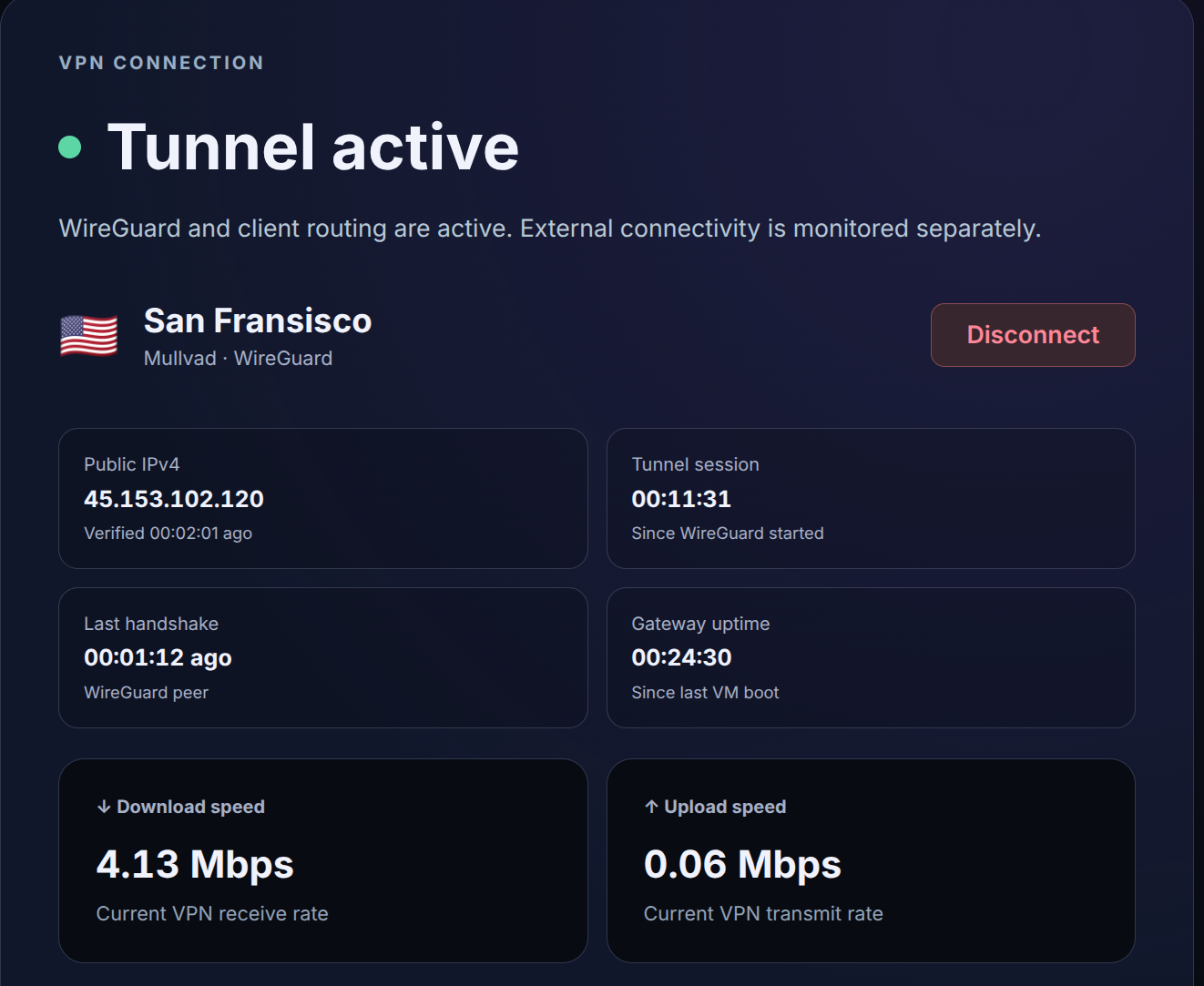
Users can add as many servers as they wish using this process, each server, being added to the VPN Connections list on the home page. Switching between servers is as simple as clicking connect.
Information
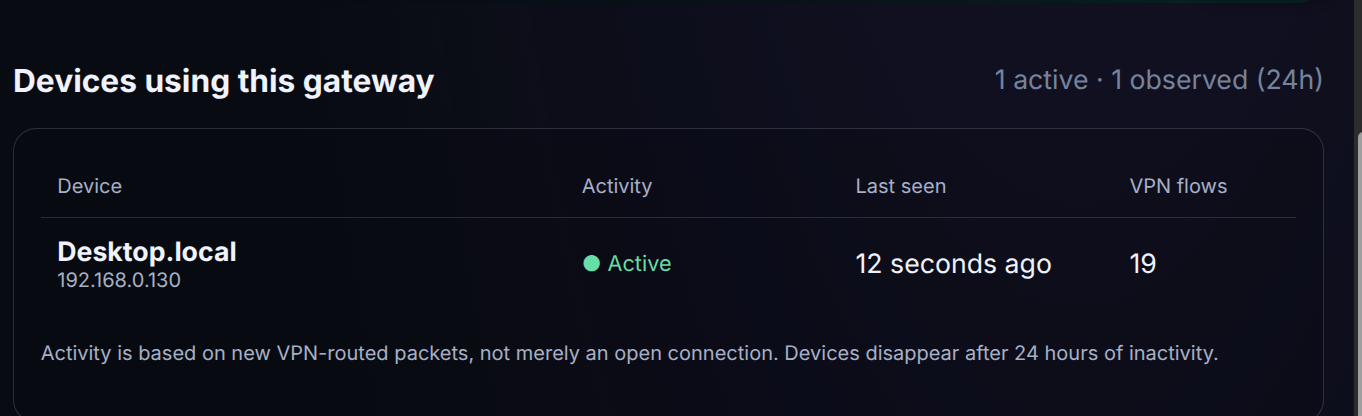
The Information page will show connected devices,initially by IP address and, if disoverable using Avahai, the hostname. This data is based on actual traffic and will show a connected client and its status for up to 24 hours from when it was last seen.
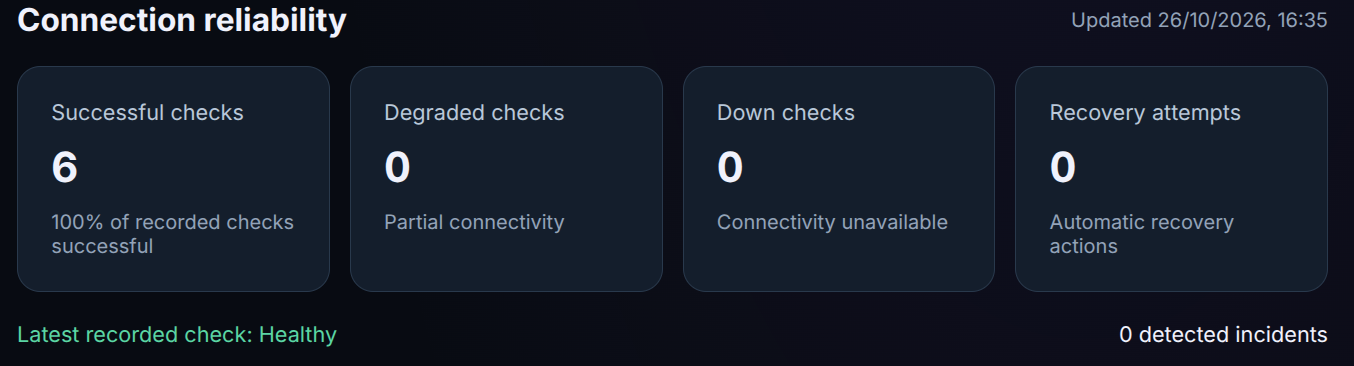
The system will carry out frequent connectivity checks whilst running, this will show how many were successful, any indicating service degredation (issues with one or more of the checks) or if the connection has been down/recovery attempted during the pervious 24 hours.
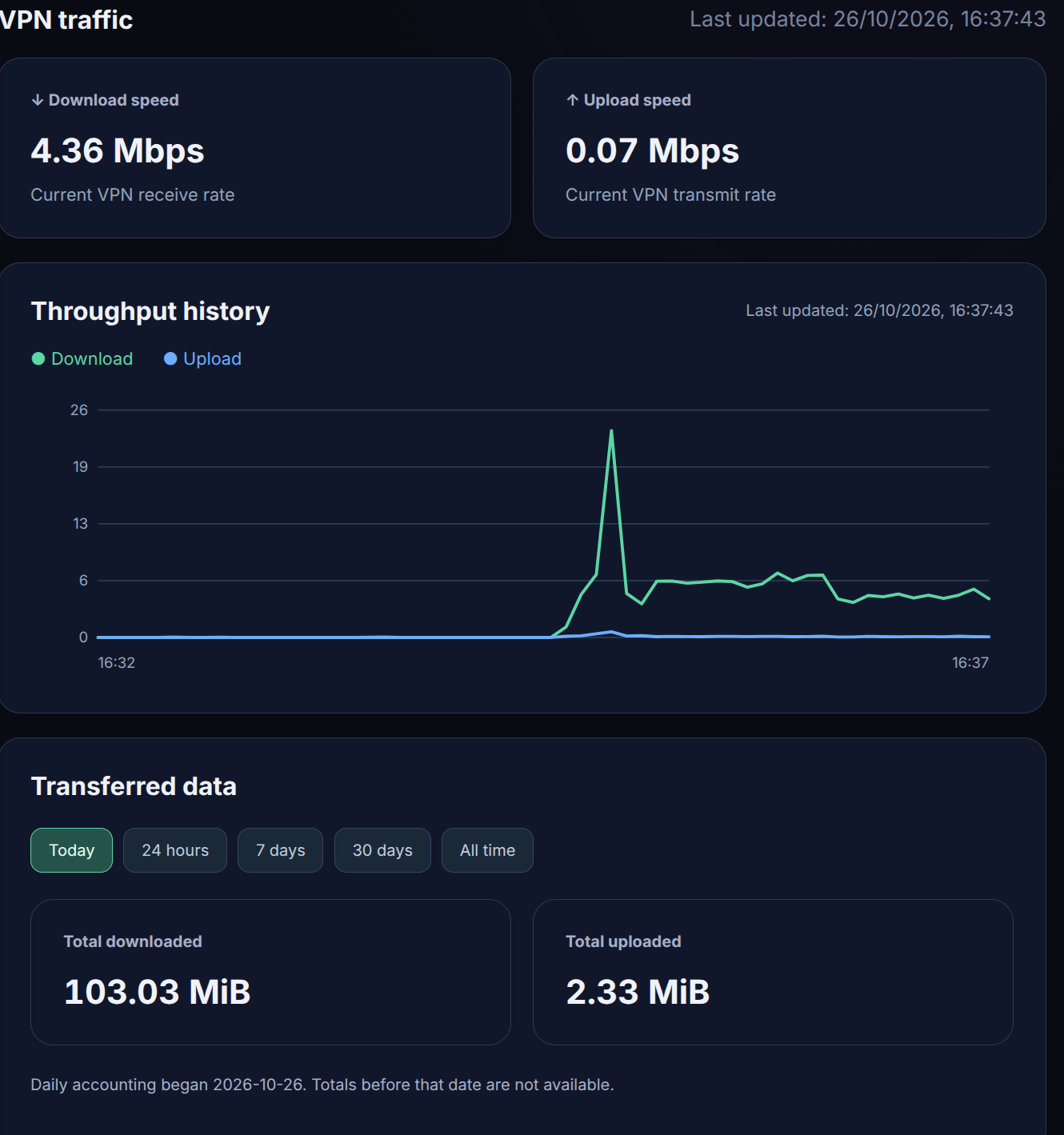
VPN:OG will also provide data showing traffic through the VPN.
Settings
We have already looked at importing a VPN config file from providers, we can also change the web interface administrator password from this page. Users will be logged out and have to log in again when changing the password.
There are many more features under the hood which we will describe in more detail in our documentation.